


2 Useful CMD Commands You Should Know!
Date
2026-11-18
Views
24

An overview of two useful Windows Command Prompt commands that can help you check important system information and network-sharing settings using simple commands to find out when your PC was last booted and identify which folders or resources are shared across your network. Windows has several built-in CMD commands that provide useful information about your computer. Some of these commands can help with troubleshooting, system monitoring, and checking network configurations without installing additional software.
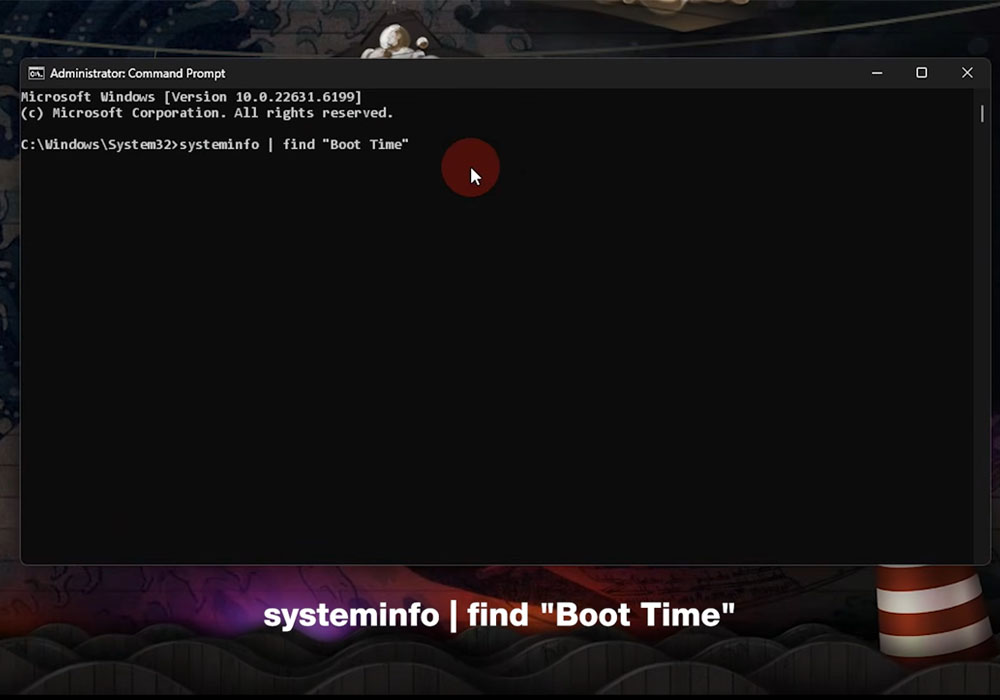
🕒 Command #1 Check Your PC's Last Boot Time
The first command is:
systeminfo | find "Boot Time"
This command displays the last boot time of your computer, showing the date and time Windows was last started. It uses systeminfo to retrieve system information, while find "Boot Time" filters the results to display only the relevant line.
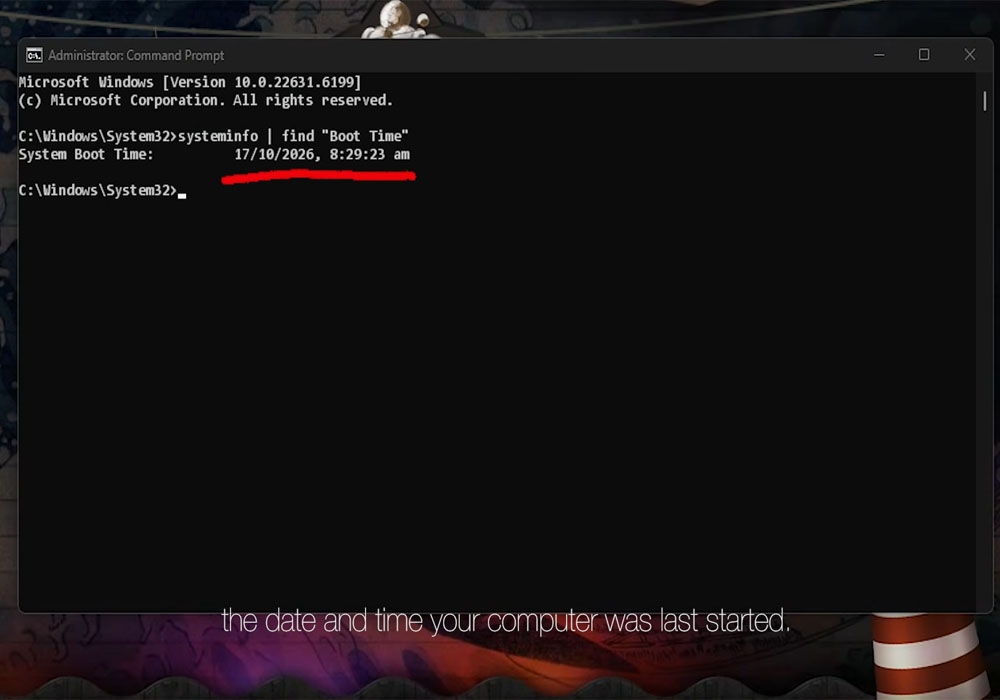
🔍 Know When Your Computer Was Last Started
After running the command, Windows displays the Boot Time information directly in Command Prompt.
This is useful when you want to:
● Check when your computer was last restarted
● Verify whether a recent restart actually happened
● Monitor how long your PC has been running
● Troubleshoot situations where a computer hasn't been restarted for a long time
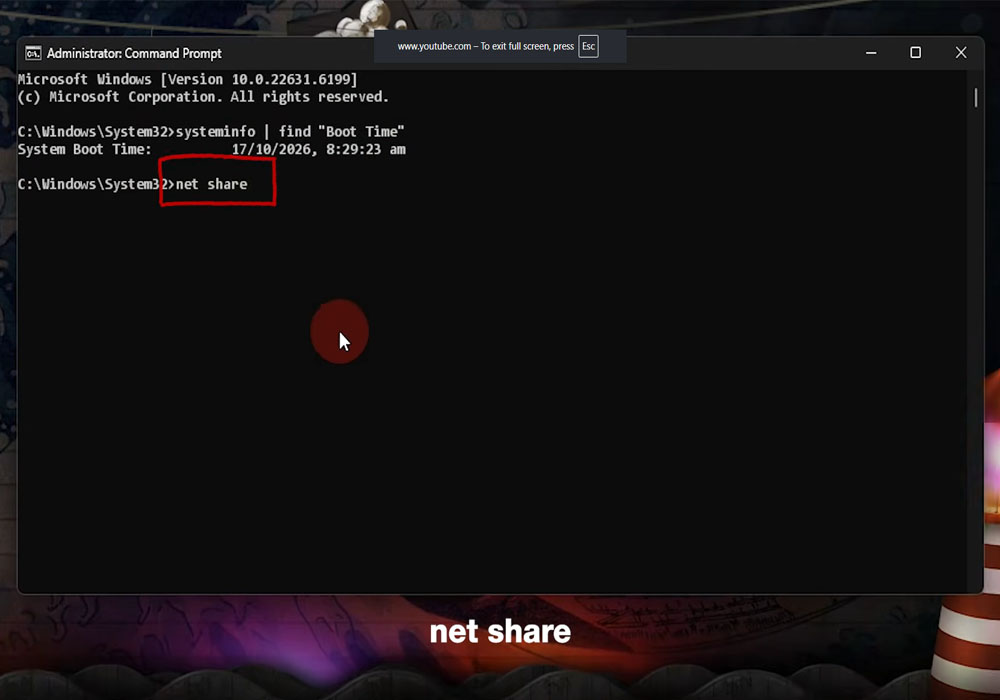
🌐 Command #2 — Check Your Network Shares
The second command is: "net share" . This command displays a list of shared folders and resources on your Windows computer. It shows the share names, their corresponding resource paths, and additional information about how those resources are shared.
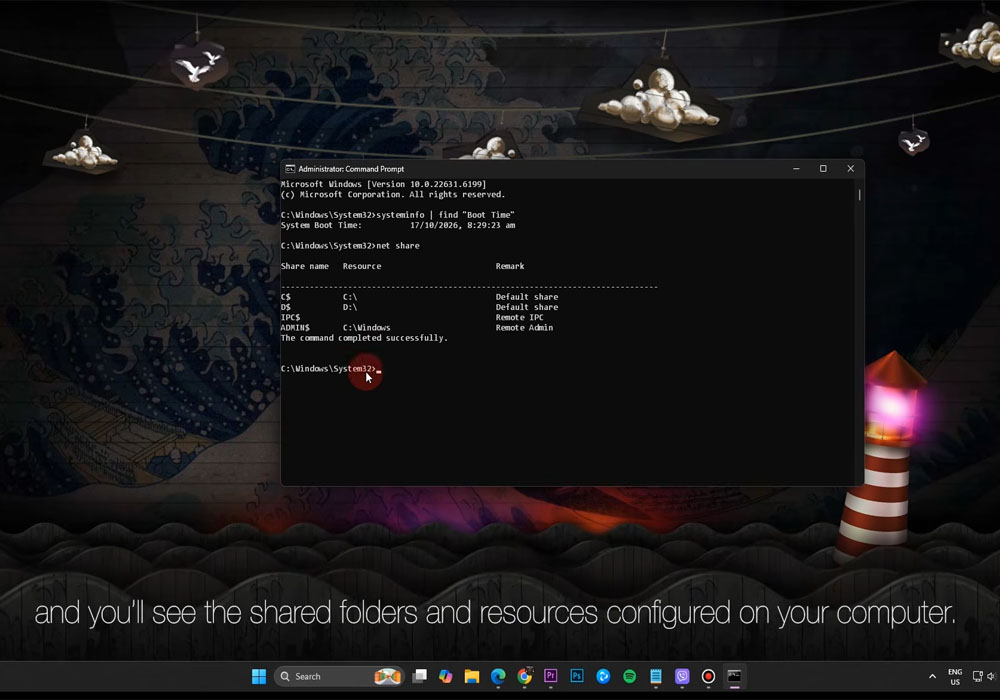
📁 See What Your PC Shares Across the Network
After entering net share, Windows displays the available network shares configured on your computer. This can help you identify which folders or system resources are accessible through network sharing. It's particularly useful when managing computers in an office or checking network-sharing configurations.
🔑 Key Takeaways
● Windows Command Prompt offers useful commands beyond basic troubleshooting
● systeminfo | find "Boot Time" → Displays the last boot date and time
● net share → Lists shared folders and resources configured on your computer
● Both commands are built into Windows and can be executed directly through CMD
● Knowing these commands can make basic PC monitoring, system checking, and network troubleshooting easier.
🎥 For the complete video presentation, please click the link below:
👉 https://youtu.be/RMkaCk1WI7Y?si=Kjy9HWDhMUEpMpOt
🎓 For tips, guides, and tutorial content, please visit our official YouTube channel:
👉 https://www.youtube.com/@OPENPINOYiWatchYou
📞 Contact Information
For inquiries and further assistance, please reach us through the following channels:
📱 Mobile / Viber: 0917-822-1232 / 0917-822-3232
📧 Email: openpinoy_onlinesales@hotmail.com
🌐 Website:
👉 Website for B2B - WWW.OPENPINOY.NET
👉 Website for Retail - WWW.OPENPINOY.COM
OPENPINOY©️
🤝 We are pleased to assist you with your needs.