


How to Upgrade from Windows 10 to Windows 11 (Step-by-Step Guide)
Date
2026-01-08
Views
394

This guide presents a
clear and practical walkthrough for upgrading from Windows 10
to Windows 11🖥️. It
provides a comprehensive breakdown of the upgrade process
demonstrated in the video, which specifically details a "Server
Setup" workaround to transition from Windows 10 to Windows 11 using a step-by-step tutorial🔍🔐.
🪛 1. Important Disclaimers and Compliance
The video opens with several high-stakes warnings regarding the legitimacy and safety of the upgrade:
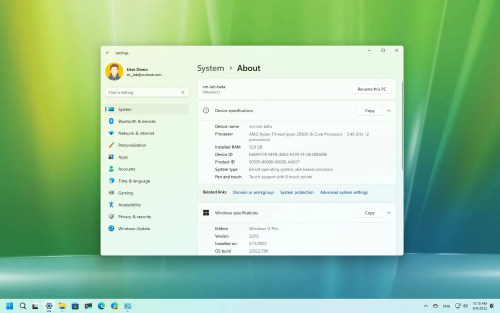
● Mandatory Genuine OS: You must have a genuine, activated version of Windows 10. If the OS is pirated or lacks a product key, the upgrade will fail.
● Hardware Limitations: Microsoft officially supports Windows 11 on Intel 8th Gen processors and newer. The video notes that this method allows older systems to upgrade, but explicitly states that the user assumes all responsibility for any system instability or issues that arise on unsupported hardware.
● The "Why": The primary motivation for this upgrade is the upcoming end-of-support for Windows 10 security updates on October 14th, making the move to Windows 11 essential for long-term data security.
📥 2. Pre-Installation: BIOS Configuration
Before interacting with any software, you must ensure your motherboard's firmware (BIOS/UEFI) is configured correctly:
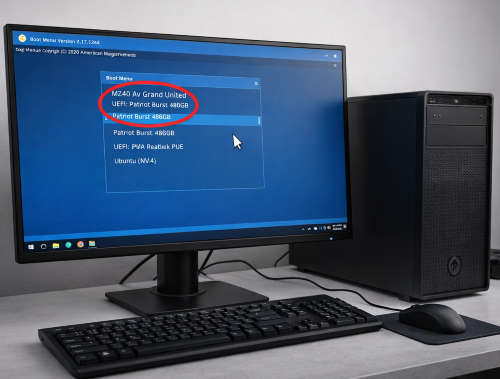
● UEFI Mode: The installation environment must be set to UEFI (Unified Extensible Firmware Interface) rather than the older "Legacy" or "CSM" modes.
● Secure Boot: You must enter your BIOS settings and ensure that Secure Boot is toggled to ON. This is a core requirement for Windows 11's security architecture.
💾 3. The "Product Server" Bypass Method
The video demonstrates a specific technical workaround to initiate the upgrade, which involves using a command-line switch to bypass standard hardware checks:
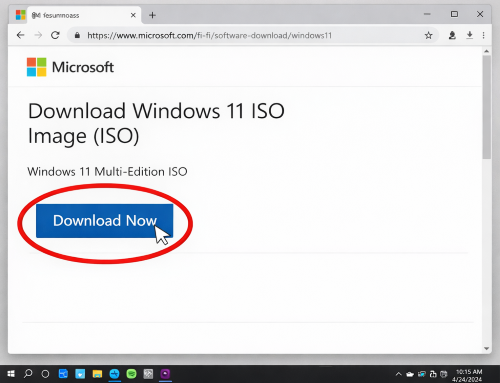
● Step A: Obtaining the Media: You must first download the Windows 11 ISO file from the official Microsoft website.
● Step B:
Opening the Installer: Once
downloaded, "Mount" or open the ISO file to view the
installation files (such as setup.exe).
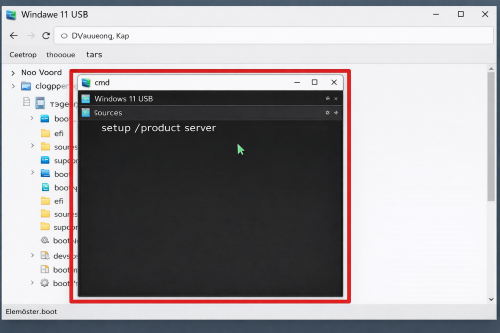
● Step C: The
Command Prompt Trick: *
Instead of double-clicking setup.exe,
click on the folder's address bar at the top of the window, type cmd,
and press Enter.
• In the black
Command Prompt window that appears, type the following exact string:
setup
/product server
.
• Why this works: This specific command tells the installer to run as if it were a Windows Server installation, which historically uses different hardware validation rules, allowing it to proceed on many systems that would otherwise be flagged as "incompatible."
🖥️ 4. Finalizing the Upgrade
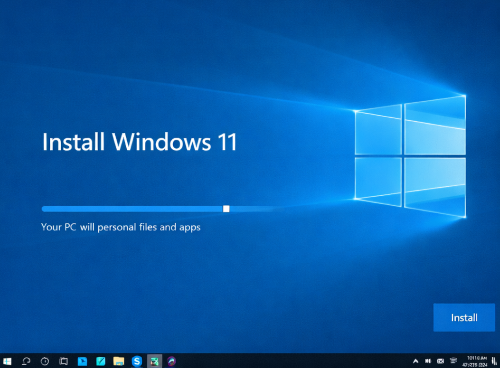
The video emphasizes that users should not be "left behind" By following these steps, users can stay updated with the latest security patches and features, even if their hardware doesn't meet the strict official requirements.
🎥 For the complete step-by-step video presentation, please click the link below:
👉 https://www.youtube.com/watch?v=IgWaw3M7V-8&list=PL8W3ENYDF9_yf8PobZl-UoJ6Sh9pNhl4n&index=18&t=2s
🎓 For tips, guides, and tutorial content, please visit our official YouTube channel:
👉 https://www.youtube.com/@OPENPINOYiWatchYou
📞 Contact Information
For inquiries and further assistance, please reach us through the following channels:
📱 Mobile / Viber: 0917-822-1232 / 0917-822-3232
📧 Email: openpinoy_onlinesales@hotmail.com
🌐 Website:
👉 Website for B2B - WWW.OPENPINOY.NET
👉 Website for Retail - WWW.OPENPINOY.COM
OPENPINOY©️
🤝 We are pleased to assist you with your needs.